Teletect Dither
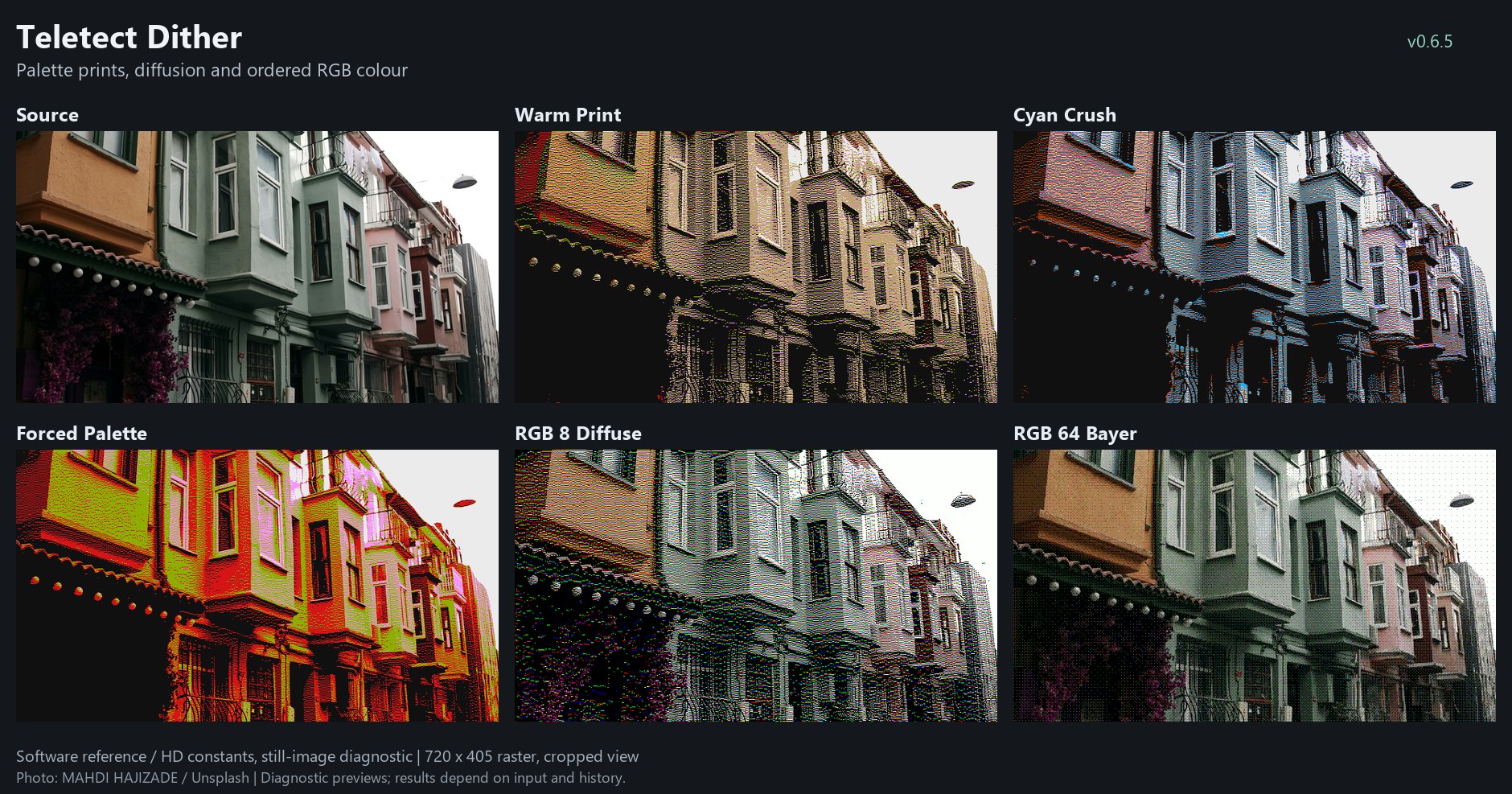
Teletect Dither on one photograph: the Warm Print and Cyan Crush presets, Forced palette selection, RGB 8-color diffusion and RGB 64-color Bayer. Software reference renders; your results depend on the source.
Overview
Teletect Dither reduces the picture to a handful of colors and uses dithering to suggest the tones in between, the way early computers, printers and game consoles did. It has two color modes:
-
Palette reduces the picture to five colors: black, white and three colors you choose with hue, saturation and brightness controls.
-
RGB quantizes red, green and blue independently to 8 or 64 colors.
Either mode can use error diffusion, which spreads each pixel’s rounding error onto the next line for organic, print-like grain, or ordered Bayer dither, which produces a regular crosshatch pattern. The knobs work on two pages: a Perform page for hues, dither amount and input tone, and an Edit page for the palette’s saturations and brightnesses.
Note
Teletect Dither is a processing program. It needs a source connected: a camera, playback, or another Videomancer program upstream.
What’s In a Name?
To dither is to add a controlled pattern of noise before reducing color depth, so that the eye averages neighboring pixels into tones the palette doesn’t contain.
Quick Start
-
Load Warm Print. The picture becomes a warm five-color print with diffused grain.
-
Turn Hue 2 (Knob 2) and Hue 3 (Knob 3) to change two of the palette colors.
-
Set Dither (Switch 7) to Bayer for a regular crosshatch, and try Bayer Size (Switch 8) at 4x4 and 8x8.
-
Set Colour Mode (Switch 9) to RGB for an 8-color computer look; set Type / Depth (Switch 10) to 64 for a richer one.
-
Back in Palette mode, flip Control Page (Switch 11) to Edit and shape each palette color’s saturation (top knobs) and brightness (bottom knobs).
Parameters
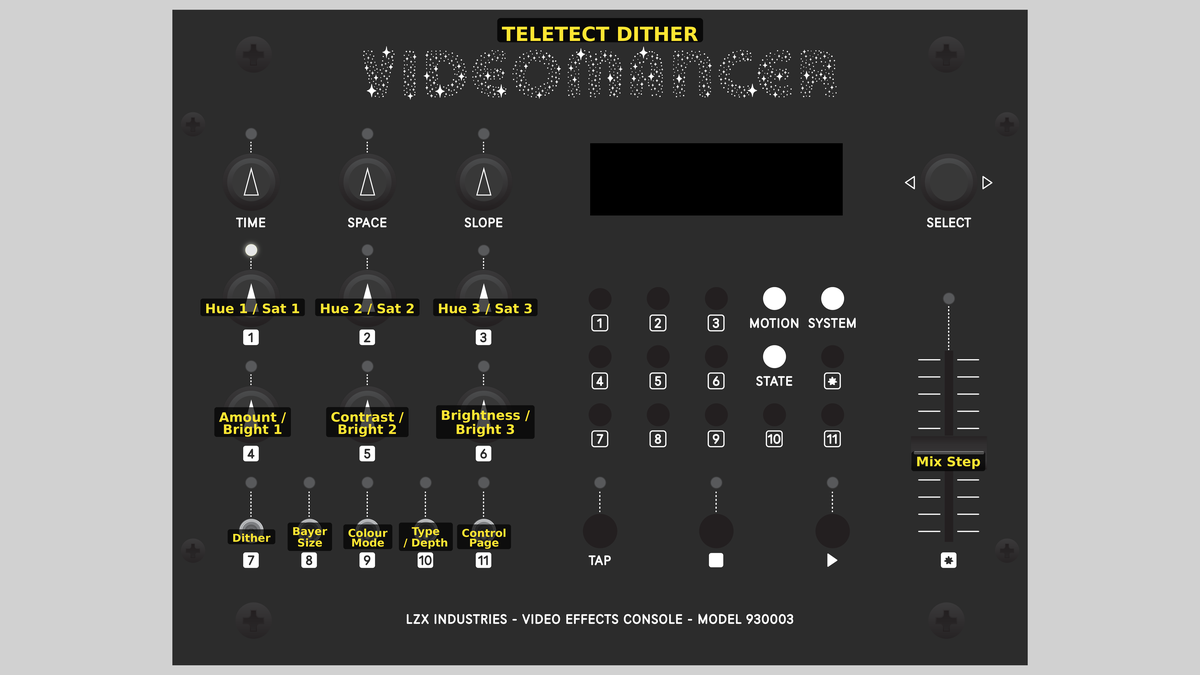
Videomancer’s front panel with Teletect Dither active. Each knob label shows its Perform role, then its Edit role.
Perform and Edit pages
Control Page (Switch 11) selects which page the six knobs edit. Each page keeps its own saved values. When you change pages, each knob is locked at its saved value until you turn it to (or past) that value, so nothing jumps. The switches and the Mix Step fader work the same on both pages.
| Knob | Perform page | Edit page |
|---|---|---|
1 |
Color 1 hue |
Color 1 saturation |
2 |
Color 2 hue |
Color 2 saturation |
3 |
Color 3 hue |
Color 3 saturation |
4 |
Dither amount |
Color 1 brightness |
5 |
Input contrast |
Color 2 brightness |
6 |
Input brightness |
Color 3 brightness |
On the Edit page the three palette colors line up in three columns: saturation on top, brightness below. Knob settings take effect at the start of the next field or frame.
Most knobs are stepped. The LCD shows their position as one of eight steps, 0/7 to 7/7.
Knob 1 — Hue 1 / Sat 1
| Property | Value |
|---|---|
Range |
0/7 – 7/7 |
Default |
0/7 |
Perform: the hue of palette color 1, one of eight positions around the color wheel. Edit: the saturation of color 1, from neutral (0/7) to full (7/7) in eighths.
Knob 2 — Hue 2 / Sat 2
| Property | Value |
|---|---|
Range |
0/7 – 7/7 |
Default |
2/7 |
Perform: the hue of palette color 2. Edit: the saturation of color 2.
Knob 3 — Hue 3 / Sat 3
| Property | Value |
|---|---|
Range |
0/7 – 7/7 |
Default |
5/7 |
Perform: the hue of palette color 3. Edit: the saturation of color 3.
Knob 4 — Amount / Bright 1
| Property | Value |
|---|---|
Range |
0/7 – 7/7 |
Default |
7/7 |
Perform: the dither amount, in halving steps from full strength (7/7) down to off (0/7): 100%, 50%, 25%, 12.5%, 6.25%, 3.125%, 1.5625% and 0%. At 0/7 there is no dither at all, just a flat reduction to the palette, which gives posterized bands. Edit: the brightness of palette color 1, in eight steps from near black to near white.
Knob 5 — Contrast / Bright 2
| Property | Value |
|---|---|
Range |
0/7 – 7/7 |
Default |
4/7 |
Perform: input contrast before dithering, from 50% (0/7) through unchanged (4/7) to 137.5% (7/7), in 12.5% steps. Edit: the brightness of palette color 2.
Knob 6 — Brightness / Bright 3
| Property | Value |
|---|---|
Range |
-50% – +50% |
Default |
0% |
Perform: a smooth brightness offset applied to the input after contrast and before dithering. Center is unchanged. Edit: the brightness of palette color 3, in eight steps. The LCD still shows the knob position as a percentage on the Edit page.
Switch 7 — Dither
| Property | Value |
|---|---|
Off |
Diffuse |
On |
Bayer |
Default |
Diffuse |
Diffuse carries each pixel’s rounding error onto the next line, for grainy, organic texture with some visible streaking. Bayer adds a fixed threshold pattern instead, for a regular crosshatch with no feedback between pixels.
Switch 8 — Bayer Size
| Property | Value |
|---|---|
Off |
4x4 |
On |
8x8 |
Default |
4x4 |
The size of the Bayer pattern. 4x4 is coarser and more graphic; 8x8 gives smoother gradients. It has no effect in Diffuse mode.
Switch 9 — Colour Mode
| Property | Value |
|---|---|
Off |
Palette |
On |
RGB |
Default |
Palette |
Palette reduces the picture to black, white and your three palette colors. RGB quantizes red, green and blue separately and ignores the palette.
Switch 10 — Type / Depth
| Property | Value |
|---|---|
Off |
8/Nearest |
On |
64/Forced |
Default |
8/Nearest |
This switch means something different in each color mode, so both meanings are on its label: the number is the RGB color count and the word is the palette selection type.
-
In RGB mode: 8 colors (one bit per channel) or 64 colors (two bits per channel).
-
In Palette mode: Nearest picks the palette color closest to each pixel’s actual color. Forced ignores the input’s color and assigns palette slots by brightness alone, in five fixed bands: black, color 1, color 2, color 3, white. Forced turns Dither into a five-band colorizer.
Switch 11 — Control Page
| Property | Value |
|---|---|
Off |
Perform |
On |
Edit |
Default |
Perform |
Selects which page the six knobs edit. See Perform and Edit pages above.
Fader 12 — Mix Step
| Property | Value |
|---|---|
Range |
0/16 – 16/16 |
Default |
16/16 |
Mix Step blends the original and dithered pictures in sixteenths. Only 16/16 produces purely palette or RGB colors; lower settings let the original picture show through.
Presets
Teletect Dither has two factory presets. Both select the Perform page and full dither amount.
| Control | Warm Print | Cyan Crush |
|---|---|---|
Hue 1 / Sat 1 |
0/7 |
1/7 |
Hue 2 / Sat 2 |
2/7 |
4/7 |
Hue 3 / Sat 3 |
5/7 |
6/7 |
Amount / Bright 1 |
7/7 |
7/7 |
Contrast / Bright 2 |
4/7 |
5/7 |
Brightness / Bright 3 |
0% |
0% |
Dither |
Diffuse |
Diffuse |
Bayer Size |
4x4 |
4x4 |
Colour Mode |
Palette |
Palette |
Type / Depth |
8/Nearest |
8/Nearest |
Control Page |
Perform |
Perform |
Mix Step |
16/16 |
16/16 |
Note
Presets store the knob positions of the page they select. The Edit page’s saturations and brightnesses are held separately and are not stored in presets, so recalling a preset keeps your current palette saturation and brightness. They return to their defaults when the program is reloaded or Videomancer is power cycled.
Background
Error diffusion
When a pixel is rounded to the nearest available color, the difference (the error) is not thrown away. Teletect Dither passes it to the next line, split between the pixels below-left, below and below-right. Neighboring pixels then round the other way often enough that, viewed from a distance, the average matches the original tone. Because the error only travels down, not sideways, the texture has a slight vertical streak compared with the classic Floyd–Steinberg pattern.
Ordered (Bayer) dither
Bayer dither compares each pixel against a threshold taken from a repeating 4×4 or 8×8 grid. The result is a regular pattern, with no error carried between pixels, that is very stable on moving images.
Palette selection
In Palette mode with Nearest, each pixel picks whichever of the five palette colors is closest, weighting brightness twice as heavily as color. With Forced, palette slots are chosen by brightness bands alone, so you can map shadows, midtones and highlights to any colors you like, regardless of the input’s hue.
Exercises
Exercise 1: Build a Palette
Learning Outcomes
Use both control pages to design a custom five-color palette.
Video Source
A colorful scene with a range of tones.
Steps
-
Load Warm Print.
-
On the Perform page, turn Hue 1, Hue 2 and Hue 3 to pick three hues.
-
Switch Control Page to Edit. Set each color’s saturation with Knobs 1–3, and its brightness with Knobs 4–6. Spread the three brightnesses apart for clearer tones.
-
Switch back to Perform. Your knobs are locked until you turn each one past its saved value.
-
Set Type / Depth to Forced. Shadows, midtones and highlights now take your three colors in brightness order.
Exercise 2: Computer Graphics
Learning Outcomes
Compare RGB depths and dither types.
Video Source
Any footage.
Steps
-
Set Colour Mode to RGB and Type / Depth to 8. The picture uses only the eight primary and secondary colors, black and white.
-
Switch Dither between Diffuse and Bayer.
-
Set Type / Depth to 64 and Bayer Size to 8x8 for a smoother result.
-
Lower Amount step by step on the Perform page and watch the dither give way to flat bands.
Credits
Teletect Dither is by Teletect and is part of the Teletect Toolkit, released under the GPL-3.0 license. Preview images are reference-model renders of a photograph by Mahdi Hajizade on Unsplash.
Glossary
-
Bayer matrix: A grid of threshold values used for ordered dithering.
-
Dither: A pattern added before reducing color depth so that neighboring pixels average into intermediate tones.
-
Error diffusion: Dithering that passes each pixel’s rounding error to neighboring pixels.
-
Palette: The fixed set of colors an image is reduced to.
-
Pickup: A knob behavior where a control does nothing until it reaches its saved value, avoiding sudden jumps.