Teletect Mosaic
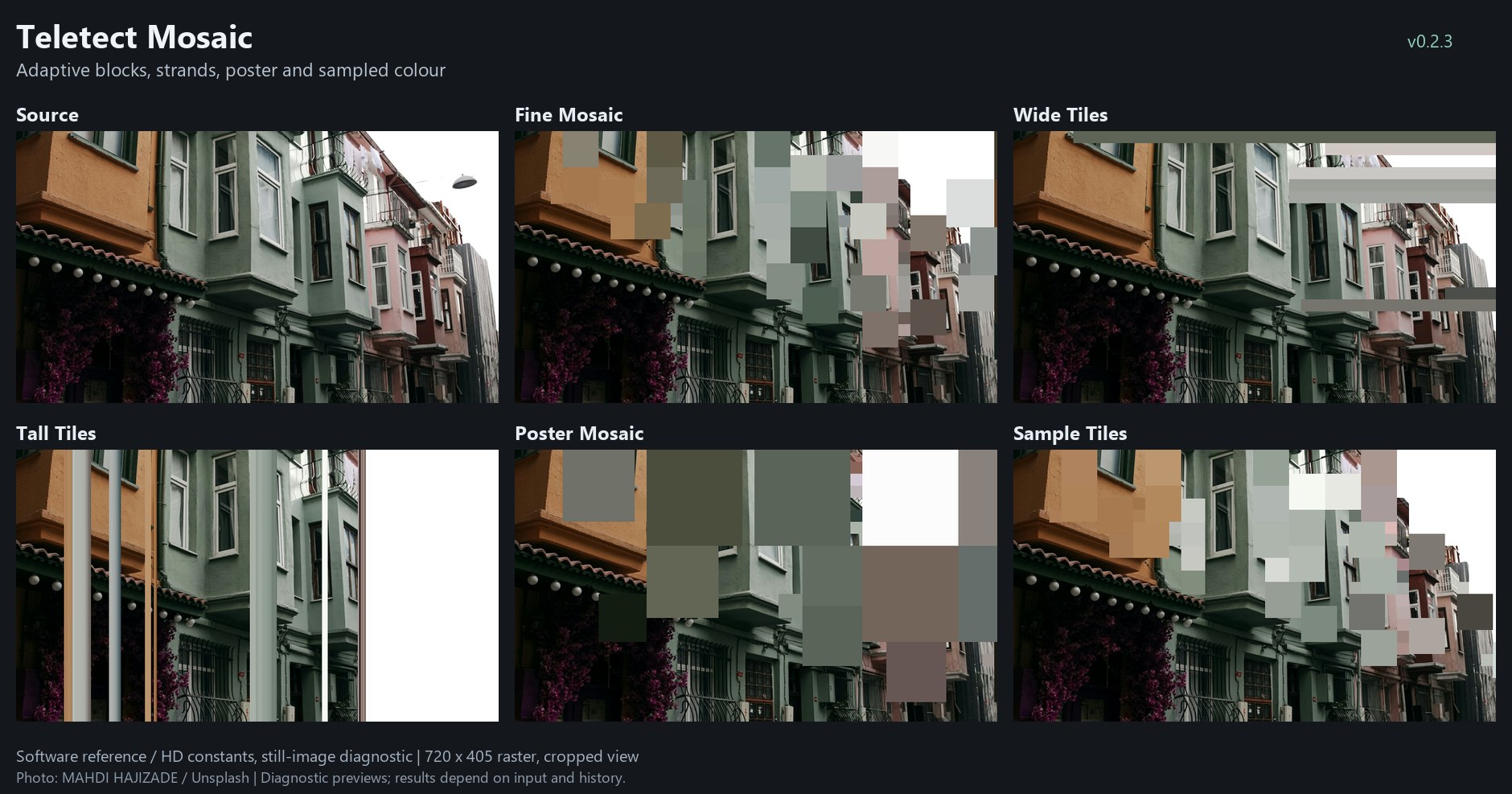
Teletect Mosaic on one photograph: the Fine Mosaic, Wide Tiles, Tall Tiles and Poster Mosaic presets, and Block Colour set to Sample. Software reference renders; your results depend on the source.
Overview
Teletect Mosaic breaks the picture into flat-colored rectangles whose size follows the brightness of the image. Unlike a fixed pixelation grid, every block is sized on its own: highlights can become large tiles while shadows stay sharp (or the reverse), and blocks can be square, wide or tall. At the extremes, blocks collapse to individual source pixels, one-pixel vertical strands, or single-row horizontal streaks.
A brightness Threshold gates which parts of the picture are processed at all, so you can pixelate only the highlights or only the shadows and leave the rest of the image untouched.
Note
Teletect Mosaic is a processing program. It needs a source connected: a camera, playback, or another Videomancer program upstream.
What’s In a Name?
A mosaic builds an image from small flat tiles. "Adaptive" mosaics vary the tile size across the image. Teletect Mosaic decides each tile’s size from the brightness where the tile begins.
Quick Start
-
Load Fine Mosaic. The brighter half of the picture breaks into small square blocks.
-
Turn Max Size (Knob 5) clockwise. The largest blocks grow.
-
Sweep Aspect (Knob 3) from left to right. Blocks go from tall columns through squares to wide bars.
-
Flip Gate (Switch 7) to Below to move the effect into the shadows.
-
Turn on Poster (Switch 8) for flatter, posterized block colors.
Parameters
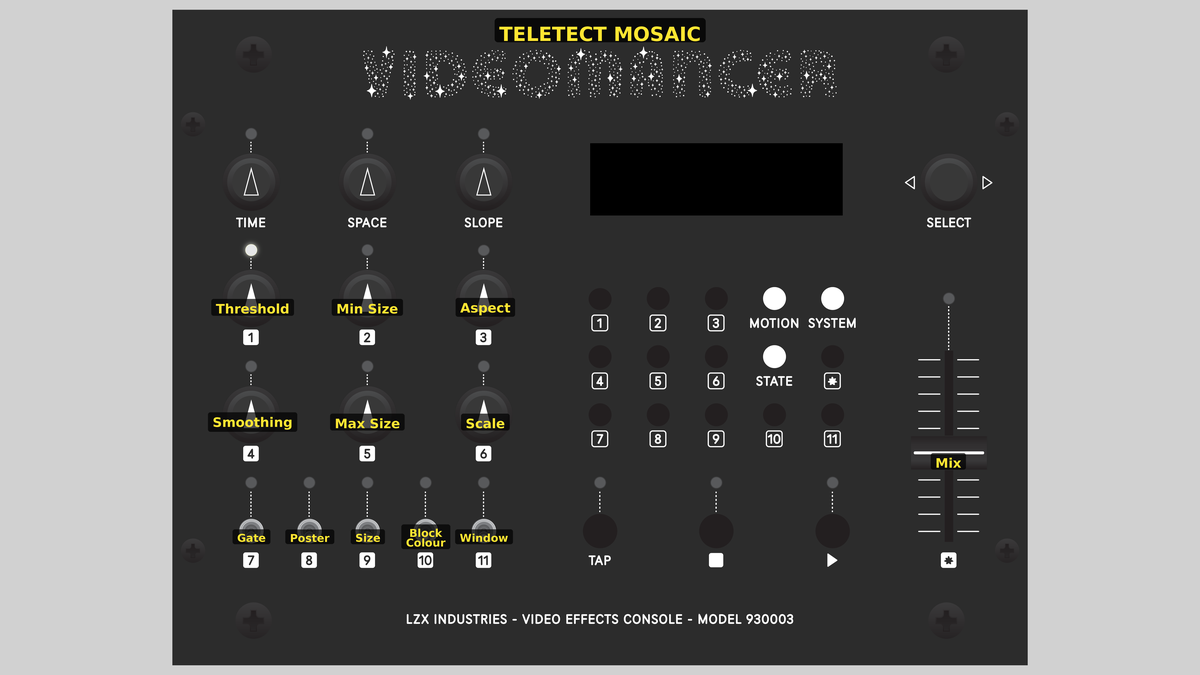
Videomancer’s front panel with Teletect Mosaic active.
The controls are arranged in columns, each with its switch directly below: Threshold and Smoothing over Gate (left), the two size endpoints over Size (middle), and Aspect and Scale over Window (right). Switch 8 (Poster) and Switch 10 (Block Colour) sit between the columns.
Knob 1 — Threshold
| Property | Value |
|---|---|
Range |
0 – 1023 |
Default |
512 |
Threshold is the brightness gate. Only parts of the picture above it (or below it, with Gate set to Below) are turned into blocks. The rest of the picture passes through unchanged. The LCD shows the raw brightness value.
Knob 2 — Min Size
| Property | Value |
|---|---|
Range |
0% – 100% |
Default |
6% |
Min Size sets the smallest block. At 0% the smallest "blocks" are the individual source pixels, unchanged. Min Size and Max Size are the two ends of the size range; if you cross them over, they are swapped internally.
Knob 3 — Aspect
| Property | Value |
|---|---|
Range |
0 – 1023 |
Default |
512 |
Aspect sets the block shape. The center is square. Between center and the ends it steps through seven exact width:height ratios: 1:8, 1:4, 1:2, 1:1, 2:1, 4:1 and 8:1. Fully left fixes blocks at their minimum width (tall vertical strips; with Min Size at 0, independent one-pixel columns). Fully right fixes them at their minimum height (wide horizontal bars; with Min Size at 0, single sampled rows).
Knob 4 — Smoothing
| Property | Value |
|---|---|
Range |
0 – 1023 |
Default |
128 |
Smoothing softens the brightness used to decide block sizes, along each line. Higher settings stop fine texture from producing ragged size changes. At 0 it is bypassed. It affects decisions only; it doesn’t blur the picture.
Knob 5 — Max Size
| Property | Value |
|---|---|
Range |
0% – 100% |
Default |
50% |
Max Size sets the largest block. At 100% a block can extend to the full frame width or the remaining frame height.
Knob 6 — Scale
| Property | Value |
|---|---|
Range |
0 – 1023 |
Default |
0 |
Scale narrows the brightness window that maps onto the size range. At 0 the whole brightness range maps from Min Size to Max Size. Turning Scale up compresses the transition into a smaller brightness window, so sizes snap between small and large over a narrower band of tones. Window (Switch 11) sets where that window is centered. Scale changes the slope of the mapping, not the maximum size.
Switch 7 — Gate
| Property | Value |
|---|---|
Off |
Above |
On |
Below |
Default |
Above |
Above processes areas brighter than Threshold; Below processes areas darker than it.
Switch 8 — Poster
| Property | Value |
|---|---|
Off |
Off |
On |
On |
Default |
Off |
Poster drops the lowest four bits of block color, for flatter, posterized tiles. Off keeps full color precision.
Switch 9 — Size
| Property | Value |
|---|---|
Off |
Normal |
On |
Inverted |
Default |
Normal |
Normal makes blocks larger in brighter areas. Inverted makes them larger in darker areas. This is separate from Gate: Size changes which tones get big blocks, Gate changes which tones are processed.
Switch 10 — Block Colour
| Property | Value |
|---|---|
Off |
Average |
On |
Sample |
Default |
Average |
Average fills each block with the average color of the first row of the block (up to 256 pixels of it), for smooth, blended tiles. Sample fills each block with the color of its top-left pixel, for sharper, more contrasty changes between tiles.
Switch 11 — Window
| Property | Value |
|---|---|
Off |
Mid-grey |
On |
Threshold |
Default |
Mid-grey |
Centers the Scale brightness window on Mid-grey or on the Threshold setting.
Fader 12 — Mix
| Property | Value |
|---|---|
Range |
0% – 100% |
Default |
100% |
Mix blends the original and processed pictures, with exact dry and fully wet endpoints.
Presets
Teletect Mosaic has four factory presets. All of them use Block Colour: Average.
| Control | Fine Mosaic | Wide Tiles | Tall Tiles | Poster Mosaic |
|---|---|---|---|---|
Threshold |
512 |
512 |
512 |
512 |
Min Size |
1% |
6% |
0% |
6% |
Aspect |
512 |
1023 |
0 |
512 |
Smoothing |
128 |
128 |
128 |
128 |
Max Size |
38% |
100% |
100% |
50% |
Scale |
0 |
0 |
0 |
128 |
Gate |
Above |
Above |
Above |
Above |
Poster |
Off |
Off |
Off |
On |
Size |
Normal |
Normal |
Normal |
Normal |
Block Colour |
Average |
Average |
Average |
Average |
Window |
Mid-grey |
Mid-grey |
Mid-grey |
Mid-grey |
Mix |
100% |
100% |
100% |
100% |
Background
How blocks are placed
Mosaic works one line at a time without storing a whole frame. When a block starts, its size, shape, color and gate decision are fixed for the whole block, and the rows below simply continue it until it ends. Coarse blocks sit on a 16-pixel horizontal grid and can reach 1920 pixels wide; in a 1080p frame the square mode can reach 1072 × 1072. Sizes between one pixel and 16 pixels are not separate steps: the fine end of the range preserves the source pixels exactly. Small fragments left over at the bottom of the frame pass through unprocessed rather than becoming distorted rectangles.
Interlaced sources
In interlaced formats (NTSC, PAL, 1080i) each field is processed on its own. A paused interlaced image has different source rows in its two fields, so block colors on fine texture can alternate between fields and appear to flicker. Use a progressive source (for example 1080p) for the steadiest blocks.
Exercises
Exercise 1: Highlight Tiles
Learning Outcomes
Use the gate and size endpoints to pixelate only part of the tonal range.
Video Source
A face or figure against a bright window or sky.
Steps
-
Load Fine Mosaic.
-
Raise Threshold until only the brightest areas are tiled.
-
Set Min Size to 0% and raise Max Size to 100%. The brightest tones get the biggest tiles; the gated edges dissolve into source pixels.
-
Flip Size to Inverted and compare.
-
Switch Block Colour to Sample for sharper tile-to-tile changes.
Settings
| Control | Value |
|---|---|
Threshold |
700 |
Min Size |
0% |
Aspect |
512 |
Smoothing |
128 |
Max Size |
100% |
Scale |
0 |
Gate |
Above |
Poster |
Off |
Size |
Normal |
Block Colour |
Sample |
Window |
Mid-grey |
Mix |
100% |
Exercise 2: Strands and Bars
Learning Outcomes
Explore the extreme Aspect settings.
Video Source
Footage with strong vertical or horizontal structure: architecture, fences, trees.
Steps
-
Load Tall Tiles. With Aspect fully left and Min Size at 0%, the picture becomes one-pixel vertical strands.
-
Slowly turn Aspect clockwise through 1:8, 1:4 and 1:2 to square.
-
Continue to fully right for wide horizontal bars, as in Wide Tiles.
-
Raise Scale with Window set to Threshold so the bars snap between small and large around your threshold.
Credits
Teletect Mosaic is by Teletect and is part of the Teletect Toolkit, released under the GPL-3.0 license. Preview images are reference-model renders of a photograph by Mahdi Hajizade on Unsplash.
Glossary
-
Aspect ratio: The width of a block divided by its height.
-
Gate: A brightness test that decides whether an area is processed or passed through.
-
Posterization: Reducing the number of color levels, producing flat bands instead of smooth gradients.
-
Interlaced: A video format that sends odd and even lines in alternating fields.